
Shopify Flow is one of the most powerful and most underused tools available to Shopify merchants.
If you’re still tagging orders manually, reacting late to low stock, or exporting data to spreadsheets every day, you’re leaving time, money, and clarity on the table.
This guide explains what Shopify Flow is, how it works, and how to use it properly with real examples, best practices, and mistakes to avoid.
Whether you’re a store owner, ops manager, or Shopify agency, this is your complete reference.
What Is Shopify Flow?
Shopify Flow is a no-code automation tool built by Shopify that helps you automate repetitive tasks across your store.
Instead of manually performing actions like:
- Tagging customers
- Monitoring high-value orders
- Managing inventory alerts
- Routing orders
- Updating internal teams
Shopify Flow allows you to define rules once, and let Shopify handle the rest automatically.
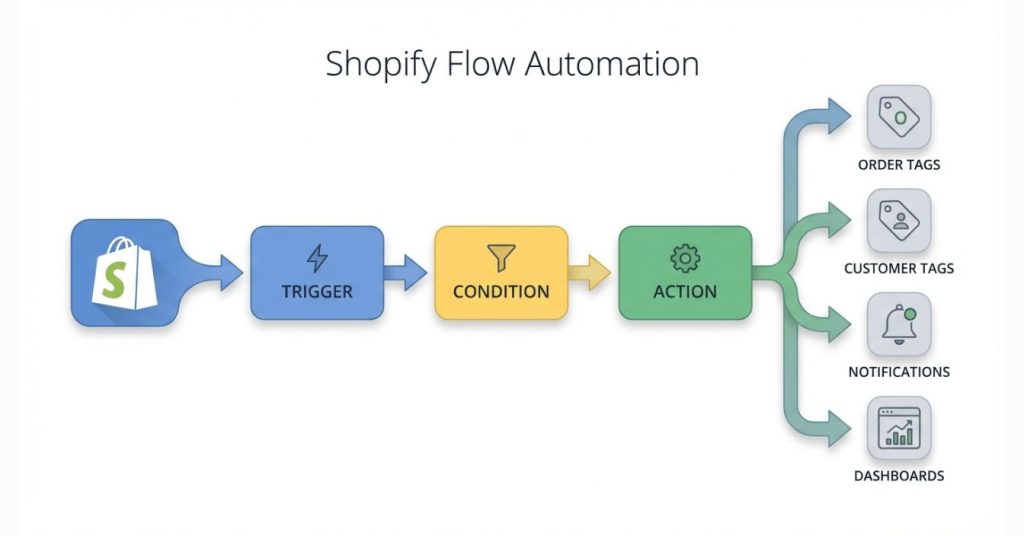
At its core, Shopify Flow works on a simple logic:
When something happens → check conditions → perform actions
This structure makes it powerful but also easy to misuse if you don’t understand it fully.
Who Can Use Shopify Flow?
Shopify Flow is available on:
- Shopify Plus
- Shopify Advanced (limited features)
- Shopify Grow (select workflows)
If you’re running a serious store or managing operations at scale, Flow is no longer optional – it’s infrastructure.
Why Shopify Flow Matters (Beyond “Automation”)
Most people think Shopify Flow is just about saving time.
That’s only half the story.
Shopify Flow actually helps you:
- Reduce human error
- Standardize decision-making
- Improve response time
- Scale operations without scaling headcount
- Create consistent customer experiences
For example:
- VIP customers are treated like VIPs automatically
- High-risk orders are flagged instantly
- Low-stock products are handled before they go out of stock
- Internal teams receive alerts without manual follow-ups
This is operational leverage, not just automation.
How Shopify Flow Works (The Core Building Blocks)
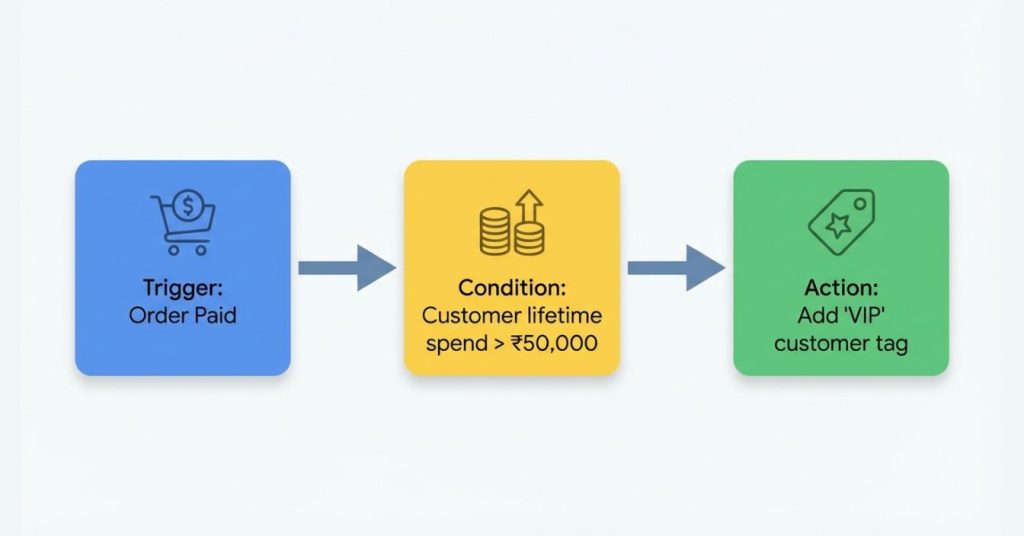
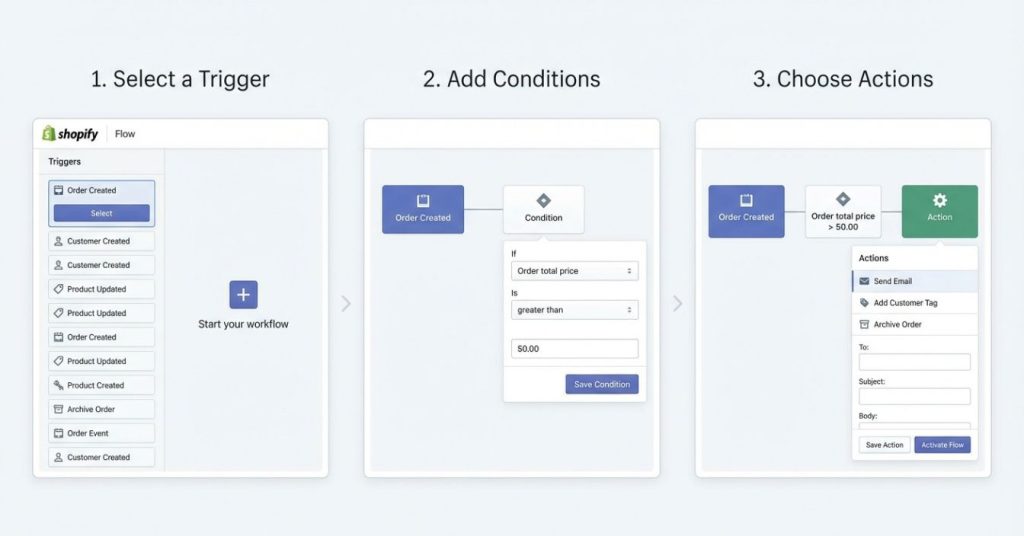
Every Shopify Flow workflow has three core components:
1. Triggers (The “When”)
A trigger is the event that starts the workflow.
Common triggers include:
- Order created
- Order paid
- Customer created
- Inventory quantity changed
- Fulfillment created
- App-specific triggers (Klaviyo, Slack, ERP tools)
Triggers define when Flow should pay attention.
2. Conditions (The “If”)
Conditions allow you to filter and control logic.
Examples:
- Order total is greater than ₹20,000
- Customer has placed more than 3 orders
- Product inventory is less than 10
- Payment gateway equals COD
- Shipping country is outside India
You can combine conditions using:
- AND logic
- OR logic
- Nested condition blocks
This is where most workflows either become powerful – or break.
3. Actions (The “Then”)
Actions define what happens once conditions are met.
Common actions:
- Add order tags
- Add customer tags
- Send internal email
- Send Slack message
- Create task in Asana
- Update metafields
- Delay actions (wait logic)
Actions turn insights into outcomes.
Shopify Flow vs Apps vs Custom Code
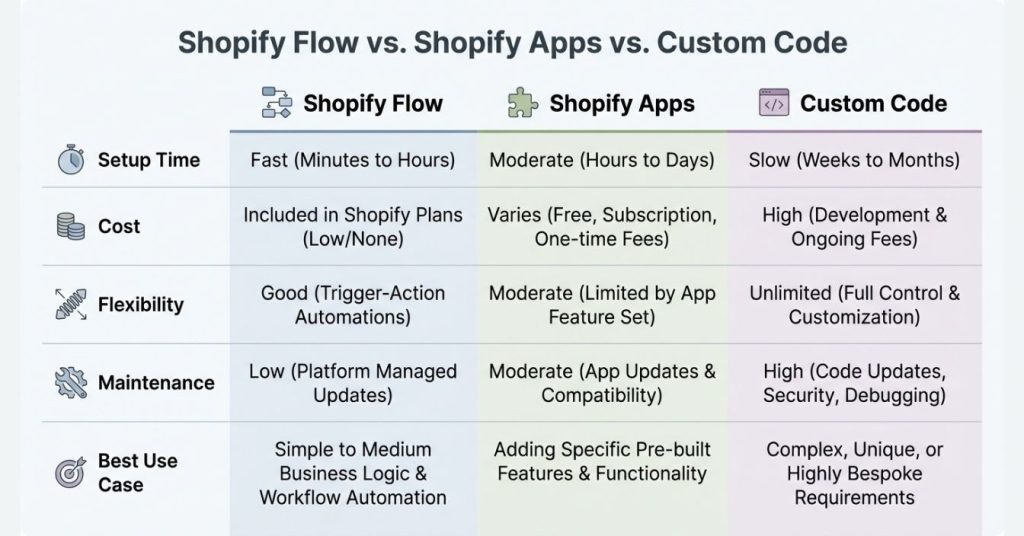
A common question is:
“Should I use Shopify Flow, an app, or custom development?”
Here’s the simple answer:
| Use Case | Best Option |
|---|---|
| Simple automation | Shopify Flow |
| Cross-tool orchestration | Shopify Flow + Apps |
| Highly custom logic | Custom app / Functions |
| One-off operational tasks | Shopify Flow |
| Revenue-critical pricing logic | Shopify Functions |
Flow is not a replacement for everything – but it connects everything.
Common Shopify Flow Use Cases
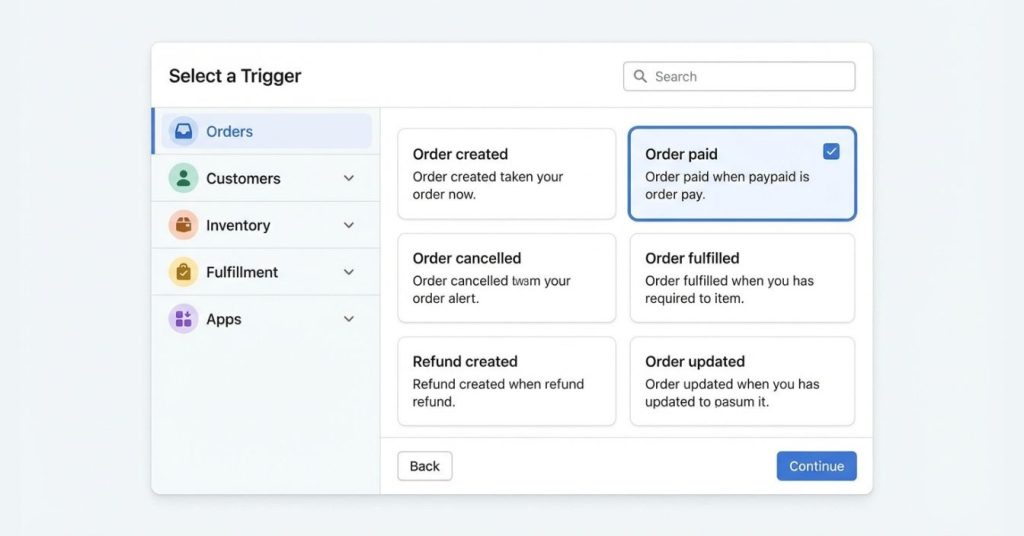
These are some of the most effective categories where Shopify Flow delivers value.
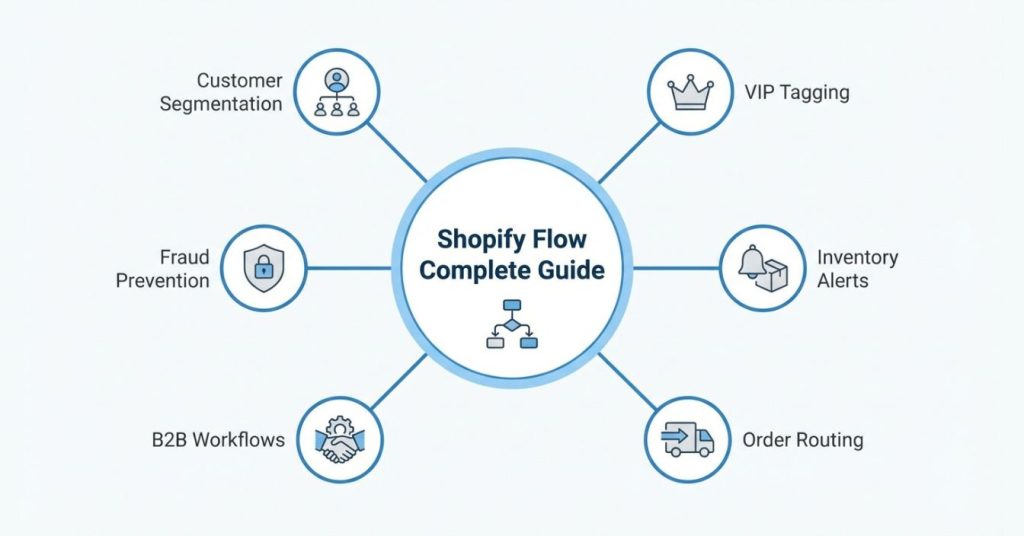
1. Customer Segmentation
Automatically tag customers based on:
- Order value
- Purchase frequency
- First-time vs returning
- Location
- Lifetime value
This becomes the foundation for:
- Email marketing
- Loyalty programs
- VIP support
- Custom pricing
2. Inventory Management
Flow helps you:
- Send low-stock alerts
- Notify vendors automatically
- Hide or unpublish sold-out products
- Track multi-location inventory issues
Inventory problems are operational problems, Flow helps you see them early.
3. Order Management & Ops
Common automations include:
- Tagging COD orders
- Flagging high-value orders
- Routing B2B orders
- Identifying international shipments
- Exporting orders to Google Sheets
These workflows reduce chaos during high-volume periods like BFCM.
4. Risk & Fraud Prevention
You can:
- Flag risky orders
- Add internal review tags
- Notify support teams instantly
- Delay fulfillment actions
Flow doesn’t replace fraud tools – it orchestrates response.
Real-World Shopify Flow Examples
Here’s how a real workflow looks in plain language.
Example 1: VIP Customer Tagging
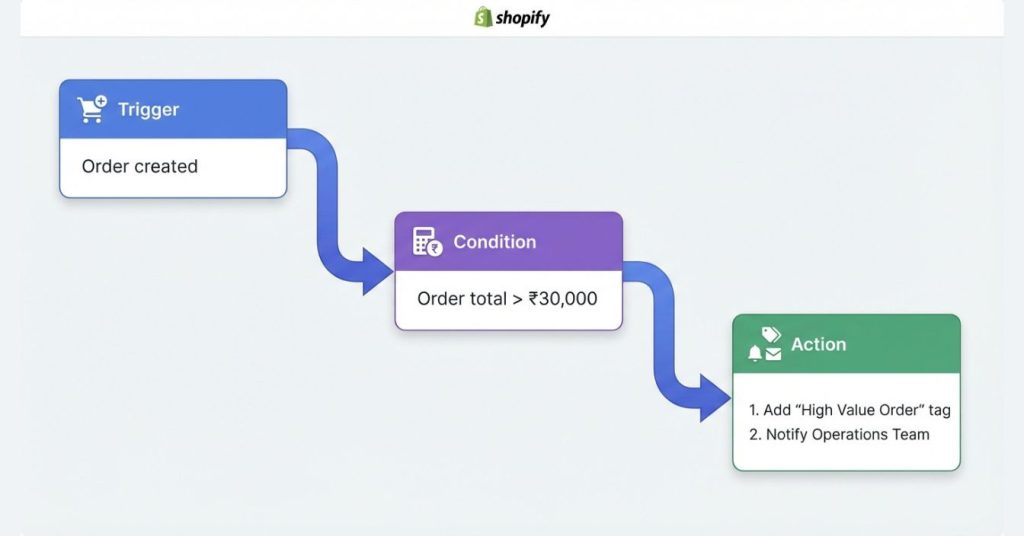
Trigger: Order paid
Condition: Order total ≥ ₹25,000
Actions:
- Add customer tag: VIP
- Add order tag: High Value
- Send Slack alert to support team
Once set up, this runs automatically forever.
Example 2: Low Stock Alert
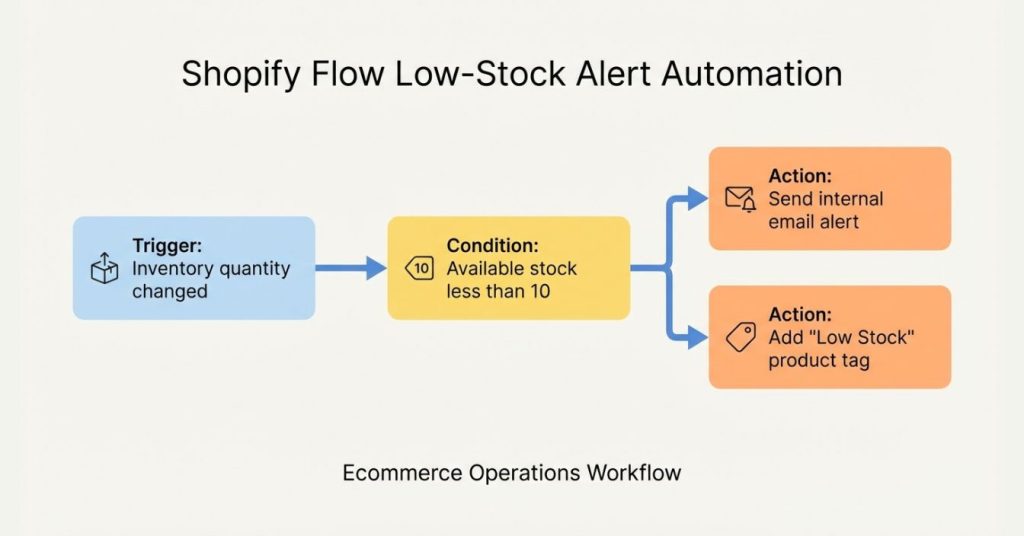
Trigger: Inventory quantity changed
Condition: Available quantity < 10
Actions:
- Send internal email
- Add product tag: Low Stock
No dashboards. No manual checks.
Shopify Flow Best Practices (Critical for SEO & Scale)
1. Always Start With a Single Objective
Don’t create “mega workflows” that do everything.
One workflow = one job.
2. Use Tags as Signals, Not Labels
Tags should trigger actions elsewhere (email, ops, reporting).
3. Name Workflows Clearly
Bad: Flow 1
Good: VIP Customers – High Order Value Tagging
You’ll thank yourself later.
4. Test With Real Data
Always test workflows using real orders, not assumptions.
5. Document Important Flows
Especially if multiple people manage the store.
Common Shopify Flow Mistakes to Avoid
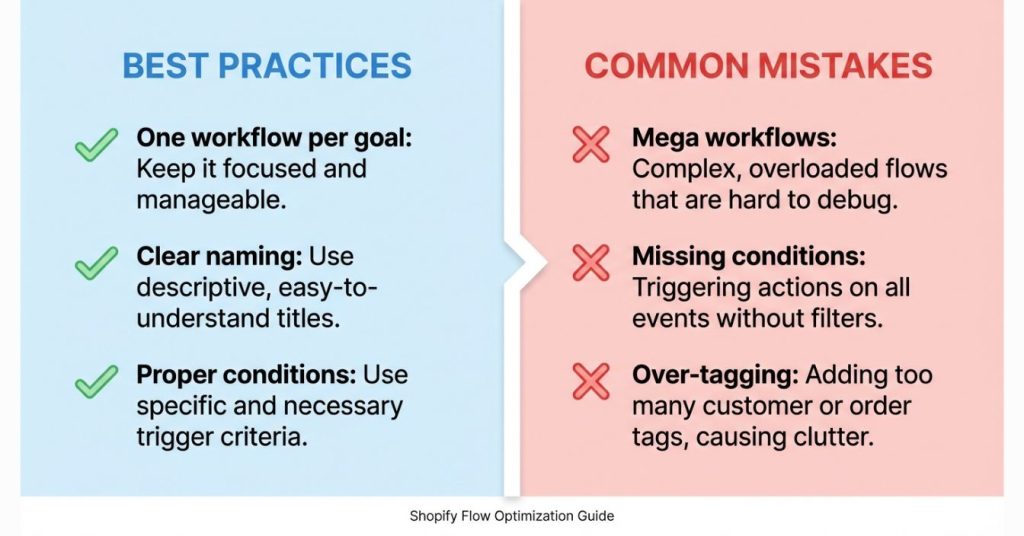
- Creating workflows without conditions
- Over-tagging everything
- Forgetting to handle edge cases
- Not monitoring failures
- Relying on Flow for pricing or checkout logic
Flow is powerful but not magical.
Advanced Shopify Flow Features
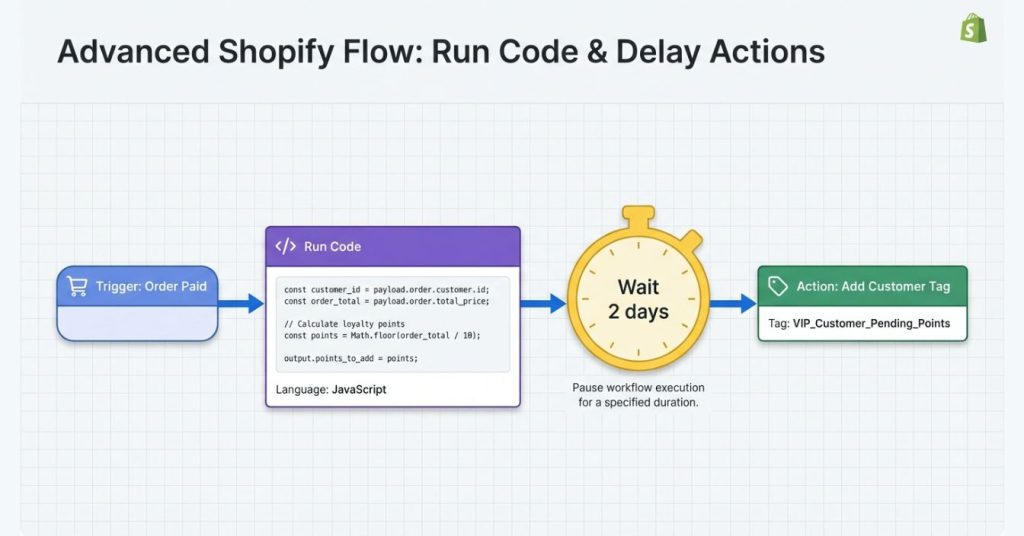
Run Code
Allows basic logic and calculations using JavaScript.
Best for:
- Data formatting
- Custom conditions
- Calculations across fields
Delays
Wait hours or days before performing actions.
Useful for:
- Payment recovery
- Follow-ups
- Time-based segmentation
App Connectors
Flow integrates with tools like:
- Klaviyo
- Slack
- Google Sheets
- ERP and fulfillment tools
This turns Flow into a central automation hub.
Shopify Flow and SEO / CRO (Underrated Connection)
Flow indirectly impacts:
- Conversion rates (faster responses)
- Customer experience consistency
- Operational reliability during traffic spikes
Better ops = better CX = better long-term performance.
How to Get Started With Shopify Flow (Step-by-Step)
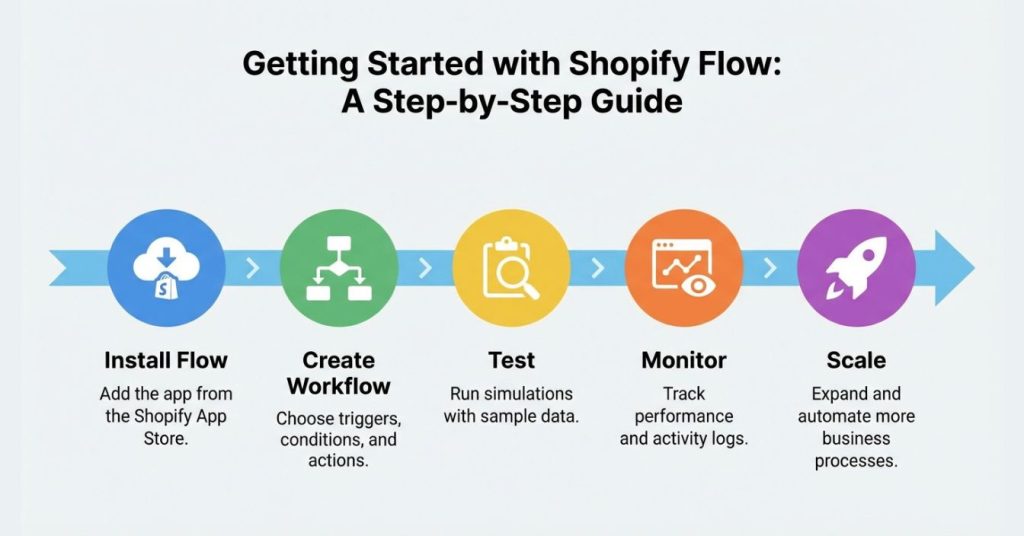
- Install Shopify Flow from your admin
- Start with one simple workflow
- Test with live orders
- Monitor for 7 days
- Expand gradually
Don’t try to automate everything on Day 1.
Final Thoughts
Shopify Flow isn’t just an automation tool.
It’s how serious Shopify stores:
- Scale cleanly
- Reduce mistakes
- Operate predictably
- Build systems that don’t break under pressure
If you’re not using Flow properly, you’re operating manually in an automated world.
Want to Go Deeper?
If you want to:
- Audit your existing Shopify Flows
- Discover automation opportunities you’re missing
- Generate ready-to-use Flow templates
Use the free tools on FixMyStore:
Build systems once. Let them run forever.